

The Raspberry Pi board is a low cost board based on Broadcom BCM2835 media processor SoC with an ARM1176JZF-S core clocked at 700MHz. This board is currently under development and should be ready by end of November, beginning of December and will be sold for 25 USD (128MB RAM – no Ethernet) and 35 USD (256MB RAM – Ethernet).
While we are waiting for the board, we can still test software using qemu to emulate a board based on an ARM1176 core with 128MB or 256 MB memory.
I’ve tried to create a rootfs based on Ubuntu with rootstock but this only support processors with ARM cortex A8 and greater, so it would not work with ARM11. I’ll be using Debian Squeeze instead.
Prerequisites
My host computer is running Ubuntu 10.04.3 LTS, but any recent Ubuntu or Debian installation should work with these instructions. [Update: You won’t be able to install qemu-linaro in Debian. [Update in update: Apparently in the latest version of Debian Squeeze, you can just install the default qemu image: apt-get install qemu-system. The build instructions below are for reference in case you use a distro with an older qemu]
You need to cross-compile qemu as follows:
|
1 2 3 4 5 6 7 |
sudo apt-get install libsdl-dev wget http://wiki.qemu.org/download/qemu-1.0.tar.gz tar xzvf qemu-1.0.tar.gz cd qemu-1.0 ./configure --target-list=arm-softmmu,arm-linux-user make sudo make install |
This also seems much faster than Linaro Qemu.]
I’m using qemu-linaro, here’s how to install it:
|
1 2 3 |
sudo add-apt-repository ppa:linaro-maintainers/tools sudo apt-get update sudo apt-get install qemu-system |
Here’s the version I use for reference:
|
1 2 3 |
qemu-system-arm --version QEMU emulator version 0.15.50 (Debian 0.15.50-2011.08-0ubuntu4~ppa10.04.1), Copyright (c) 2003-2008 Fabrice Bellard |
Building the kernel for ARM11
I will basically follow the very clear instructions given at http://raspi.springnote.com/pages/8234994 with some slight modifications. I’ll skip some explanations so refer to the link above to understand exactly what you are doing.
First create a working direcory:
|
1 |
mkdir -p ~/edev/raspberry-pi |
Download the latest Sourcery G++ Lite IA32 GNU/Linux TAR package for EABI to your working directory and extract it:
|
1 2 |
wget https://sourcery.mentor.com/sgpp/lite/arm/portal/package8734/public/arm-none-eabi/arm-2011.03-42-arm-none-eabi-i686-pc-linux-gnu.tar.bz2 tar xjvf arm-2011.03-42-arm-none-eabi-i686-pc-linux-gnu.tar.bz2 |
Download, extract and patch the kernel for ARMv6 support:
|
1 2 3 4 |
wget http://www.kernel.org/pub/linux/kernel/v3.0/linux-3.0.4.tar.bz2 tar -xvf linux-3.0.4.tar.bz2 wget http://thoronir.net/raspi-dev/linux-arm.patch<code> </code>patch -p1 -d linux-3.0.4/ < linux-arm.patch |
Configure the kernel:
|
1 2 3 |
cd linux-3.0.4 make ARCH=arm versatile_defconfig make ARCH=arm menuconfig |
Specify the cross-compiler:
|
1 2 |
General Setup --->Cross-compiler tool prefix (We need to enter the path of the toolchain followed by '/bin/arm-none-eabi-') |
In my case I entered “/home/jaufranc/edev/raspberry-pi/arm-2011.03/bin/arm-none-eabi-“.
Select the right CPU options:
|
1 2 3 4 |
System Type ---> [*] Support ARM V6 processor [*] ARM errata: Invalidation of the Instruction Cache operation can fail |
Enable ARM EABI:
|
1 2 3 4 |
Kernel Features ---> [*] Use ARM EABI to compile the kernel [*] Allow old ABI binaries to run with this kernel |
Enable qemu’s disk support:
|
1 2 3 4 5 6 7 8 9 10 11 |
Bus Support ---> [*] PCI Support Device Drivers --->SCSI Device Support ---> [*] SCSI Device Support [*] SCSI Disk Support [*] SCSI CDROM support [*] SCSI low-lever drivers ---> [*] SYM53C8XX Version 2 SCSI support |
Enable devtmpfs:
|
1 2 3 4 |
Device Drivers --->Generic Driver Options---> [*] Maintain a devtmpfs filesystem to mount at /dev [*] Automount devtmpfs at /dev, after the kernel mounted the root |
Enable tmpfs:
|
1 2 3 |
File systems --->Pseudo filesystems---> [*] Virtual memory file system support (former shm fs) |
Enable the event interface:
|
1 2 3 |
Device Drivers --->Input device support---> [*] Event interface |
Exit and save the configuration.
Now compile the kernel:
|
1 |
make ARCH=arm |
Generating ARMEL Debian Squeeze Rootfs
The kernel build will take a while, so in the meantine you can open another terminal window and prepare the rootfs.
Create an empty rootfs directory and retrieve an armel rootfs for Debian Squeeze:
|
1 2 3 4 |
cd ~/edev/raspberry-pi mkdir debian_armel_squeeze sudo apt-get install debootstrap sudo debootstrap --foreign --arch armel squeeze debian_armel_squeeze http://ftp.debian.org/debian |
Once the kernel above is built and debootsrap has completed install the kernel modules in the rootfs:
|
1 2 |
cd linux-3.0.4 sudo make ARCH=arm INSTALL_MOD_PATH=../debian_armel_squeeze modules_install |
The first stage of the rootfs is complete. You’ll notice some important script (e.g. inittab) are missing at this point, but this is normal.
Now let’s create an empty ext2 rootfs (3GB) and copy the rootfs we’ve just created to it:
|
1 2 3 4 5 6 7 |
cd ~/edev/raspberry-pi dd if=/dev/zero of=rootfs.ext2 count=6M mkfs.ext2 rootfs.ext2 mkdir mnt sudo mount -o loop rootfs.ext2 mnt sudo cp debian_armel_squeeze/* mnt -a sudo umount mnt |
To complete the rootfs, we’ll need to copy the kernel image the working directory and run qemu as follows:
|
1 2 3 4 |
cd ~/edev/raspberry-pi cp linux-3.0.4/arch/arm/boot/zImage . sudo qemu-system-arm -M versatilepb -cpu arm1176 -m 256 -hda rootfs.ext2 -kernel zImage \ -append "root=/dev/sda rw init=/bin/bash" -serial stdio |
Once you have access to the command line, mount the proc filesystem and complete the bootstrapping process:
|
1 2 |
mount /proc /proc -t proc ./debootstrap/debootstrap --second-stage |
The final steps are to enable the network, give a hostname and create a temporary root password:
|
1 2 3 |
printf "auto eth0\niface eth0 inet dhcp\n" >> etc/network/interfaces echo "raspberry-pi" > /etc/hostname passwd |
That’s it your system is now ready.
You can stop qemu and restart it as follows:
|
1 2 |
sudo qemu-system-arm -M versatilepb -cpu arm1176 -m 256 -hda rootfs.ext2 -kernel zImage \ -append "root=/dev/sda" -serial stdio |
Login as root with your temporary password and you should be asked to change it. After you have access to the command line and can check the CPU details with cat /proc/cpuinfo
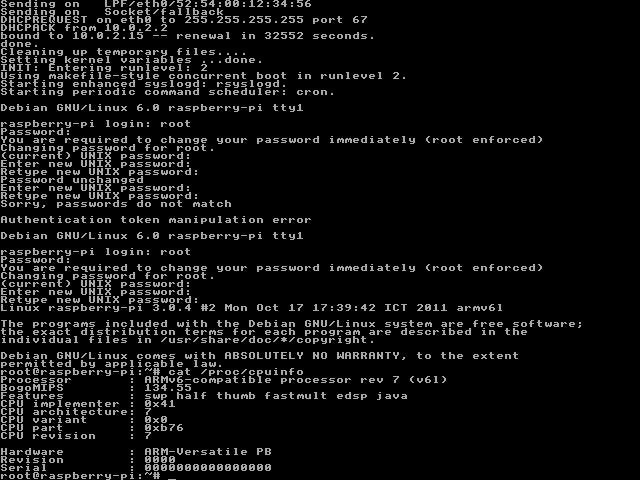
You can compile your own program using the cross-toolchain installed above
For those who want to skip the steps to build the kernel and generate the rootfs and just want to run qemu, I’ve uploaded the binary files:
- zImage: https://www.dropbox.com/s/uuj4y4ajacgsij4/zImage?dl=0
- rootfs.ext2: no available anymore
After you download rootfs.ext2.gz you’ll need to unzip it first:
|
1 |
gzip -d rootfs.ext2.gz |
The root password is raspberry for the rootfs above.
If you want to install armel binaries using apt-get like you would do on a PC distribution, edit /etc/apt/sources.list as follows:
|
1 2 |
deb http://ftp.debian.org/debian/ squeeze main contrib non-free deb-src http://ftp.debian.org/debian/ squeeze main contrib non-free |
and run:
|
1 |
apt-get update |
Sources:
- http://raspi.springnote.com/pages/8234994
- http://wiki.debian.org/EmDebian/CrossDebootstrap
- http://code.google.com/p/mini2440/wiki/Emdebian

Jean-Luc started CNX Software in 2010 as a part-time endeavor, before quitting his job as a software engineering manager, and starting to write daily news, and reviews full time later in 2011.
Support CNX Software! Donate via cryptocurrencies, become a Patron on Patreon, or purchase goods on Amazon or Aliexpress


Really great tutorial, great fun compliling linux for the first time, be warned their are a few spelling mistakes and the rootfs loads better if you use. sudo qemu-system-arm -M versatilepb -cpu arm1176 -hda YOURROOTFSFILE -kernel YOURKERNELFILE -append “root=/dev/sda”. but real good fun playing with the software before the board is available
@Gee Bartlett
Thanks for the feedback. WordPress will automatically change the type of quotes and sometimes convert — to -, I’ll try to fix that.
@Jean-Luc Aufranc (CNXSoft)
Still using the files that you provided can’t get the rootfs to mount for love or toffee. Might have to start again. but so far (with a dist-upgrade) got an lxde desktop running. hehe not bad when it is emulating on an old sempron 3000. very much liking qemu as a multi cpu test platform
Having some trouble with the compile on a Linux Mint 11 (i386) system. The first problem was resulted in these errors: cc1: error: unrecognized command line option “-mlittle-endian” cc1: error: unrecognized command line option “-mapcs” cc1: error: unrecognized command line option “-mno-sched-prolog” One post for another environment suggested that CROSS_COMPILE was incorrect. I updated the Makefile with this line: CROSS_COMPILE = ~/edev/arm-2011.03/bin/arm-none-eabi- This attempt got further but there were several of these warnings: warning: “__LINUX_ARM_ARCH__” is not defined followed by linux-3.0.4/arch/arm/include/asm/glue-df.h:107:2: error: #error Unknown data abort handler type In file included from arch/arm/kernel/asm-offsets.c:18:0: linux-3.0.4/arch/arm/include/asm/glue-pf.h:54:2: error: #error Unknown prefetch abort handler… Read more »
I’m not sure what’s wrong here.
Usually people get this type of errors, when they don’t run make menuconfig.
I checked the Bash history and my menuconfig matches the instructions: make ARCH=arm menuconfig
I have successfully built kernels before with menuconfig having started out with Slackware.
@Mark Johnson
Maybe you could check if the patch http://thoronir.net/raspi-dev/linux-arm.patch is properly applied, by looking into arch/arm/mm/Kconfig
You could also upload your .config somewhere and post the link here so that I can have a look.
@Jean-Luc Aufranc (CNXSoft)
Thank you, I would appreciate that. wget http://mjohnson.sixbit.org/RaspberryPi.config
@Mark Johnson
The two differences I see:
1. My .config has CONFIG_ARM_PATCH_PHYS_VIRT=y
2. My .config uses the full path for CONFIG_CROSS_COMPILE=”/home/jaufranc/edev/raspberry-pi/arm-2011.03/bin/arm-none-eabi-” but yours just uses CONFIG_CROSS_COMPILE=”arm-none-eabi-“, so it could potentially use another cross-compiler that is in your PATH.
I also enabled ext4 in my config, but I suppose it should not be related to your issue.
@Jean-Luc Aufranc (CNXSoft)
Thanks for the suggestions.
I chased down CONFIG_ARM_PATCH_PHYS_VIRT to the very first line in the menuconfig screen: [] Patch physical to virtual translations at runtime (EXPERIMENTAL)
Enabling it (which is not in the instructions) resulted in the .config containing CONFIG_ARM_PATCH_PHYS_VIRT=y but it did not help.
Attempting to make after that results in warnings for __LINUX_ARM_ARCH__ being undefined. Of course, that can be defined, but regardless, there is an error due to CPU_PABORT_HANDLER being undefined.
I’m about ready to throw in the towel. Once the hardware comes out, there should be a stable build environment.
@Mark Johnson
To build the kernel, I followed the instructions at http://raspi.springnote.com/pages/8234994.
I compiled it in Ubuntu, and you are doing it in Mint. But the kernel part, it should not depend on the distro.
If you want to see more output during make, use make V=1. It should show the gcc command lines.
Thanks for the great guide!
Works perfectly.
I just spotted one small typo:
Instead of “mount /proc /proc -t /proc” it should be “mount /proc /proc -t proc”
Thanks. Typos.. I make too many of those.
In case somebody tries to use more than 256 MB RAM, qemu will crash because versatile does not support more than 256 MB. Newer version of qemu will return an error instead of crashing however.
apt-get install qemu-system works for debian, too. No need to muck around with compiling.
If like me you want to run this on a remote box with no monitor, the command changes to:
qemu-system-arm -M versatilepb -cpu arm1176 -m 256 -hda rootfs.ext2 -kernel zImage -append “root=/dev/sda console=ttyAMA00” -nographic
To enable the serial console you need to add the line:
T0:23:respawn:/sbin/getty -L ttyAMA0 9600 vt100
To /etc/inittab
Also add
ttyAMA0
To /etc/securetty
I’m impressed how speedy it is, even running on a Microserver it’s perfectly usable. CPU emulation has come a long way..
@Tony
Thanks for the update and headless instructions. I suppose the recent Debian release has also updated Qemu, as before I would just get an error like “CPU not supported”.
I’m also wondering why you would use the serial port, when you can use ssh to connect to the emulator (unless I did not install dropbear in that image…)
Great tutorial, thank you very much.
Do you have an idea how to make the RTC (real time clock) work?
Whenever I launch QEMU, system time is set to January 1st, 1970. Calling “hwclock” leads to the error “Cannot access the Hardware Clock via any known method”.
Any help is appreciated.
I’m not sure qemu can emulate the real time clock. I’ve just installed the ntp daemon:
apt-get install ntpIt will get the code from the network. This should also solve the issue where you have to change the root password each time you login.
I cannot access any USB devices I provide to the virtual machine. Is the kernel correctly configured for Qemu’s USB controller? If yes, I may be missing something in my Debian installation …
@ Benny:” to the QEMU command line. If you don’t know the VID/PID of your USB device, you can use “lsusb” or “cat /proc/bus/usb/devices” to retrieve them.
I haven’t tried this. You could try to add “-usb -usbdevice host:
@ cnxsoft I managed to enable USB by making some more adjustments to the kernel config from above: Device Drivers -> [*] USB support -> Support for Host-side USB OHCI HCD support USB Mass Storage support Without this, Qemu’s USB controller will not work (“-usb -usbdevice …” parameters not having any effect). Please note that this is only a minimum USB config, allowing standard USB drives to be accessed. There are many more potential USB options for the kernel … For FAT-formatted USB drives, I also had to enable an additional codepage (otherwise mounting such devices will fail): File systems… Read more »
I’m having trouble getting past the “sudo debootstrap –foreign –arch armel squeeze debian_armel_squeeze http://ftp.debian.org/debian” step on Ubuntu 11.10. It brings up a “sudo: debootstrap: command not found” error, and unless there was some typo that I’m not aware of, I dunno what’s wrong with it. This is my first time trying anything like this, so I’m a wee bit clueless compared to the rest of you folk.
It looks like deboostrap is not install in your system, running:
should fix your issue.
One point you did not address is how to route network traffic through QEMU.
My Raspberry machine has a healthy IP address of 10.0.2.15, but QEMU does not route that anywhere.
What do I need to do so apt-get will work within the Raspberry machine?
Thanks!
@Rmm200
I have the same IP address in qemu, and apt-get works out of the box. There is nothing to do to route the traffic to qemu if the traffic originates from qemu (client). If you run a server in qemu, you’d have to use redir option or configure a tap interface in the qemu command line.
Can you ping outside, e.g. ping yahoo.com ?
If yes, have you already configured /etc/apt/sources.list as described at the end of the post ?
Full configuration is running Ubuntu 11.10 under VMWare. Firefox – and apt-get – work fine to the Internet on Ubuntu. I am running qemu in a terminal window on the Ubuntu machine. From the qemu client, I can ping 10.0.2.2 successfully (the net is up and working), but ping to 192.168.1.1 (my router) never gets a response back. My Ubuntu machine uses bridged ethernet to the host. I have not set up any routing tables on the Ubuntu machine. Surprisingly, ping yahoo.com responds with: PING yahoo.com (98.139.183.24) as if DNS was working, but never gets a response from Yahoo. Ring… Read more »
@Rmm200
I had also tried it in Virtual Box previously and it worked. However, I never tried with VMWare. But since you are using bridged mode it should not be the issue.
What happens when you run apt-get update ?
Bah – apt-get update works great. I used apt-get install ntp, which is what I really wanted, and it worked great. I have network time. No idea why ping’s don’t work, and I don’t care right now… Everything I need is working.
Thanks for putting up with me!
Robert
If you want to build a newer kernel such as Kernel 3.1.9, here’s the config I used: http://dl.dropbox.com/u/45842273/kernel_3.1.9.config
make (of qemu) gave:
In file included from /home/john/Software/RaspberryPi/qemu-1.0/linux-user/syscall.c:3325:
/home/john/Software/RaspberryPi/qemu-1.0/linux-user/ioctls.h:187: error: ‘SNDCTL_DSP_MAPINBUF’ undeclared here (not in a function)
/home/john/Software/RaspberryPi/qemu-1.0/linux-user/ioctls.h:188: error: ‘SNDCTL_DSP_MAPOUTBUF’ undeclared here (not in a function)
/home/john/Software/RaspberryPi/qemu-1.0/linux-user/ioctls.h:243: error: ‘SOUND_MIXER_ACCESS’ undeclared here (not in a function)
make[1]: *** [syscall.o] Error 1
make: *** [subdir-arm-linux-user] Error 2
@ John Rose
I recommend you follow the newer instructions @ http://www.cnx-software.com/2012/03/08/how-to-build-qemu-system-arm-in-linux/ and use linaro qemu.
For your issue:
A google search indicates that SNDCTL_DSP_MAPINBUF is defined in a file called include/linux/soundcard.h
In debian/ubuntu, running apt-get search soundcard.h show that you can install libc6-dev to make sure this file is installed, you may try.
sudo apt-get install libc6-dev
The problem could also be because you have not install an arm-linux toolchain, e.g. in Debian/Ubuntu sudo apt-get install gcc-arm-linux-gnueabi
libc6-dev is already the newest version
but E: Couldn’t find package gcc-arm-linux-gnueabi
Where is it?
In new instructions, make -j 2 gave same problem.
@ John Rose
What is your OS including version ?
@ cnxsoft
Ubuntu Lucid (i.e. 10.04.4 updated fully) Desktop 64 bit.
@ John Rose
That’s weird, you should be able to install the arm toolchain as explained in http://www.cnx-software.com/2011/03/28/installing-linaro-arm-cross-toolchain-on-ubuntu/
You can edit /home/john/Software/RaspberryPi/qemu-1.0/linux-user/ioctls.h, and check if there is a line that looks like:
#include
Do the build complains about this file at any stage? If it is not there, you could try to add it. Also check if /usr/include/linux/soundcard.h is present in your computer, and if it is, check the CFLAGS used when you build qemu, i.e you could type: export CFLAGS=-I/usr/include
@ John Rose
One more thing. Since you are using Ubuntu, why don’t you try to install qemu-system-arm directly instead of building it:
sudo add-apt-repository ppa:linaro-maintainers/tools
sudo apt-get update
sudo apt-get install qemu-system
@ cnxsoft
Thanks for help. I installed qemu-system as per your instructions. I also did sudo apt-get upgrade and it upgraded python-debian & some qemu packages (e.g. qemu-user). I’m now lost as to what to do next. Currently, I have Qemulator 0.5 & Qemu Launcher 1.7.4 GUI apps available. Do I use them them or do I start somewhere else in your instructions?
I checked on qemu-system-arm:
john@JohnDesktop:~$ qemu-system-arm –version
QEMU emulator version 1.0.50 (Debian 1.0.50-2012.03-0ubuntu1~ppa10.04.1), Copyright (c) 2003-2008 Fabrice Bellard
I’ve tried running Qemulator 0.5 using a debian .img (in Terminal mode). It gives “Flash image must be given with the ‘pflash’ parameter” in qemu-system-arm window.
Any ideas please?
@ John Rose
You can just carry on with the instructions in “Building the kernel for ARM11”
@ John Rose
Are you using the Debian image provided by Raspberry Pi ?
Then you’d better follow the instructions provided at http://www.cnx-software.com/2012/02/18/raspberry-pi-releases-1st-sd-card-image-debian-how-to-use-it-in-the-emulator
Or even more simple, you can just download the kernel http://dl.dropbox.com/u/45842273/zImage and run:
qemu-system-arm -M versatilepb -cpu arm1176 -m 256 -hda your_debian_image.img -kernel zImage -append “root=/dev/sda2” -serial stdio -redir tcp:2222::22
I never used Qemulator or Qemu Launcher.
I’d prefer to use a Debian Armel with lxde/xfce 6.0.4 for which I have the .iso. Is it possible to use that with QEMU?
@ John Rose
Yes, it looks possible: http://fedoraproject.org/wiki/How_to_use_qemu
It’s not straightforward with getting, say, Debian Armel installed. I don’t fully understand why but it’s to with the initial boot of the installer. I’ve found out how to install Debian Armel Standard & Desktop and that’s explained very well (together with the necessary downloads) at
http://people.debian.org/~aurel32/qemu/armel/
@ John Rose
Glad to know you eventually succeeded, and thanks for the link to the instructions.
I’ve just received the following email: Subject: Raspberry Pi Emulator w/ OpenGL ES support Message Body: I noticed that the emulation for the Raspberry PI that is recommended is out of date and completely lacks OpenGL ES support. There is a possibility to easily create an emulated image for use on qtonpi that makes use of this, and all it takes is modifying the maego/meego qemu instructions a little bit. Although, this image will not require the broadcom specific image for Opengl, and when you go to the actual hardware you haft to take that into account. anyways, the instructions… Read more »
The dropbox link don’t works 🙁
file not found, any images cant dowlnoads ;(
@fhff
I’ve put back the zImage link, but I don’t have the rootfs anymore.